Comparisons
Static vs Dynamic QR Codes
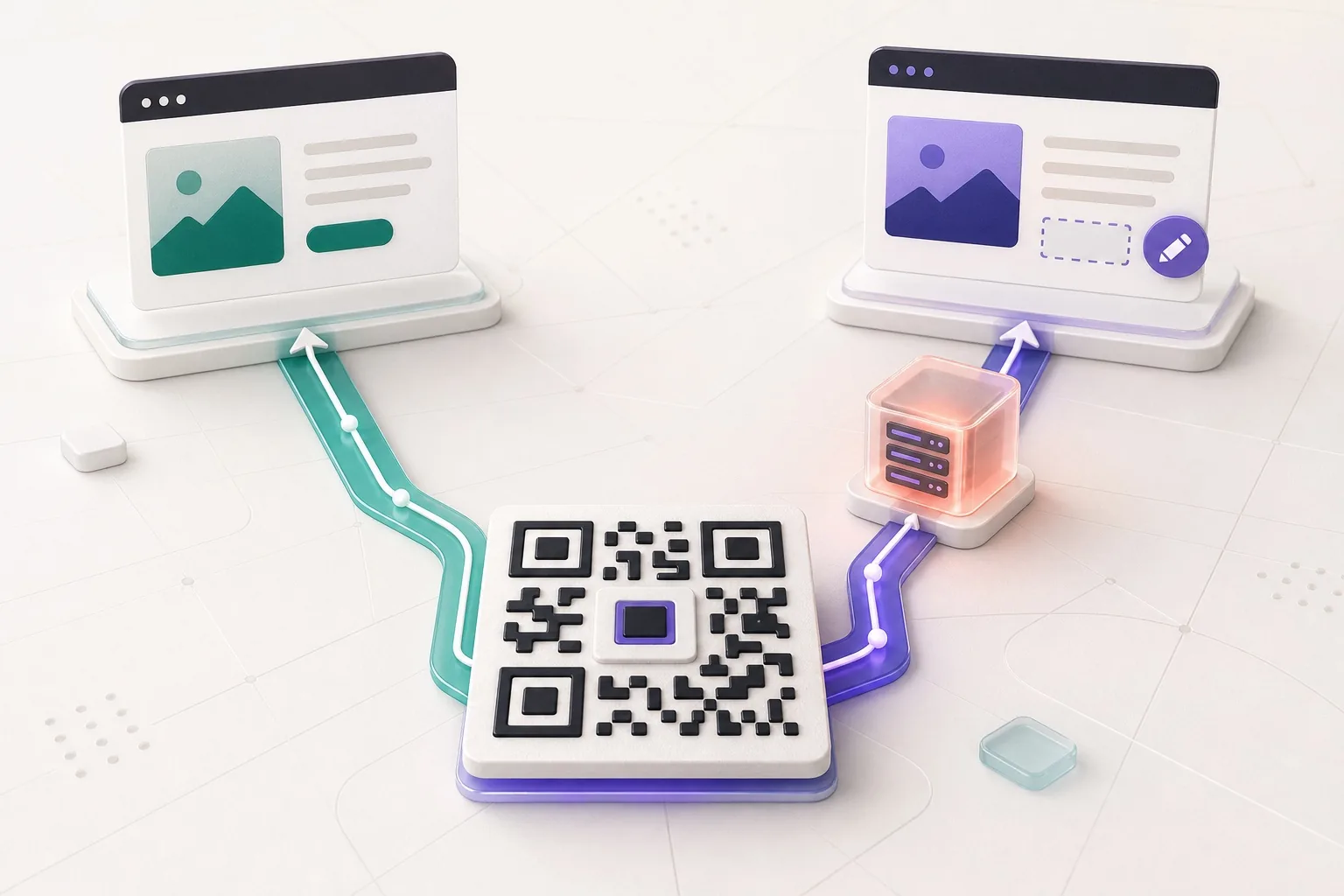
What the redirect actually buys you, measured on real encoded codes, and which payloads are worse off for it.
16 min readHold a QR code up to your webcam or phone camera and read it here in the browser. There is no app to install and no account. The picture is decoded on your device, and you see the link before anything opens it.
The camera is off. Nothing is being recorded.
The picture is decoded on your device and never uploaded. No frame is saved, here or anywhere else.
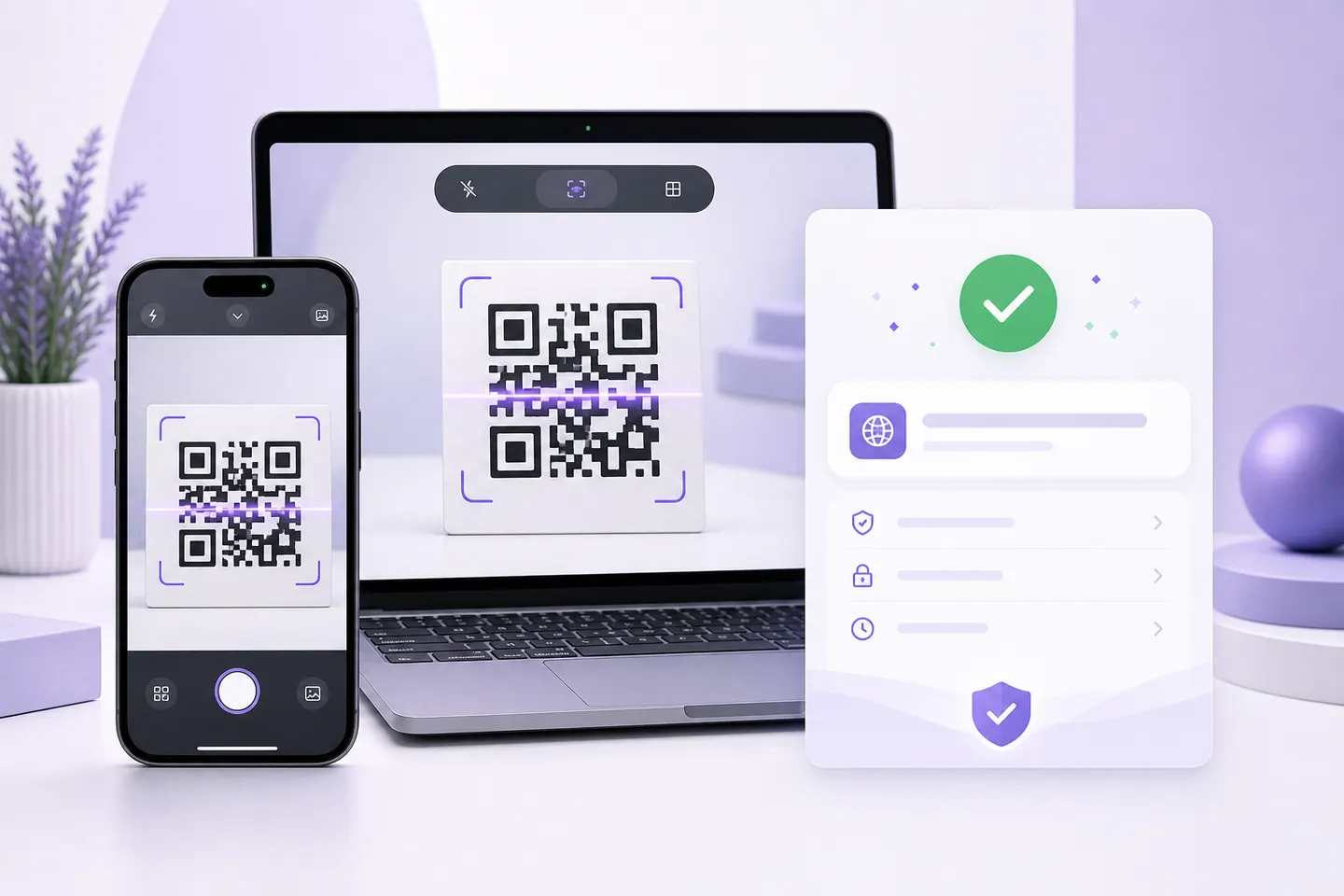
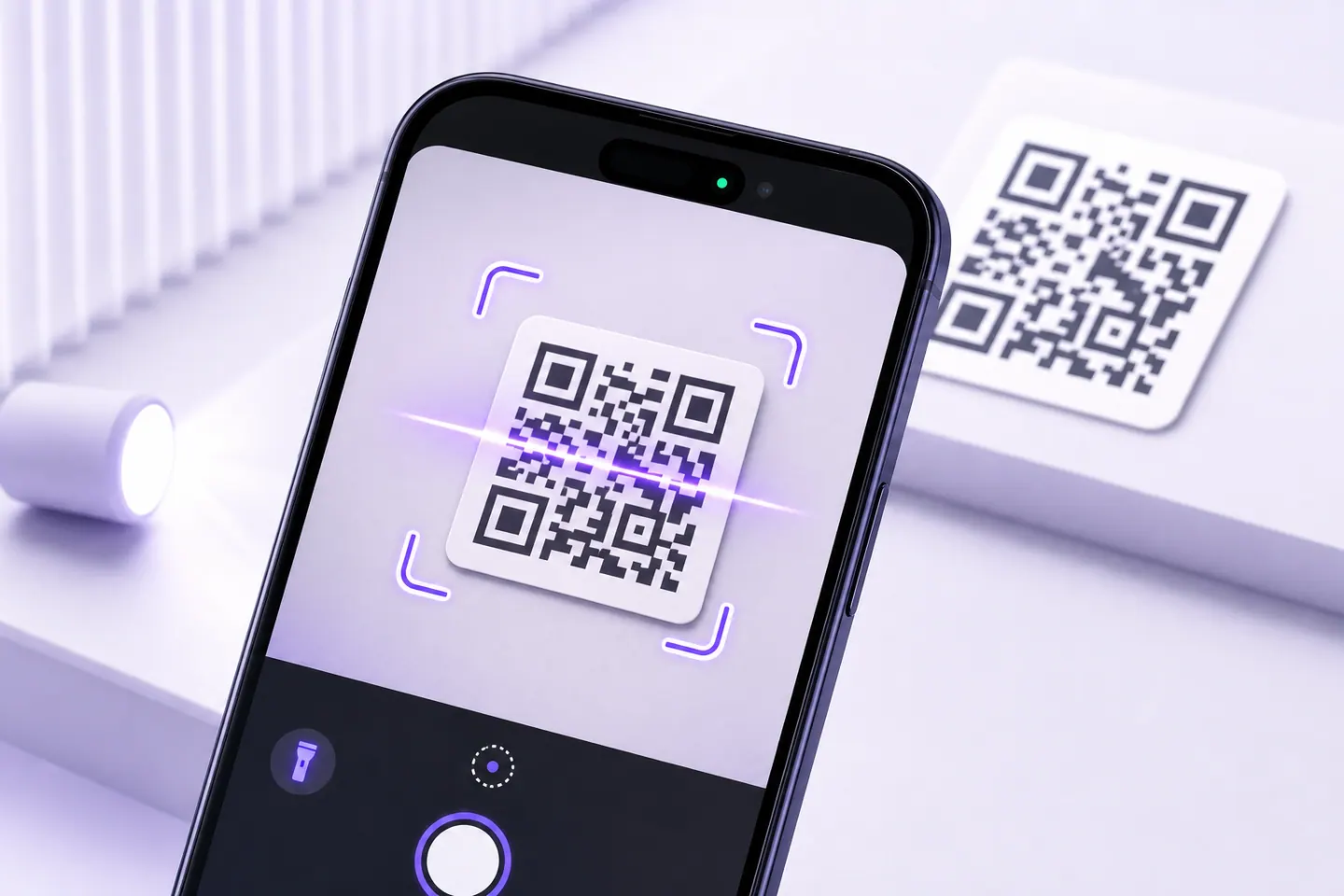
Most advice about QR codes assumes you are holding a phone. On a desktop you are not, and the phone advice is useless: there is no camera app to open and nothing to point at anything. A webcam and a browser is the whole answer, which is what this page is.
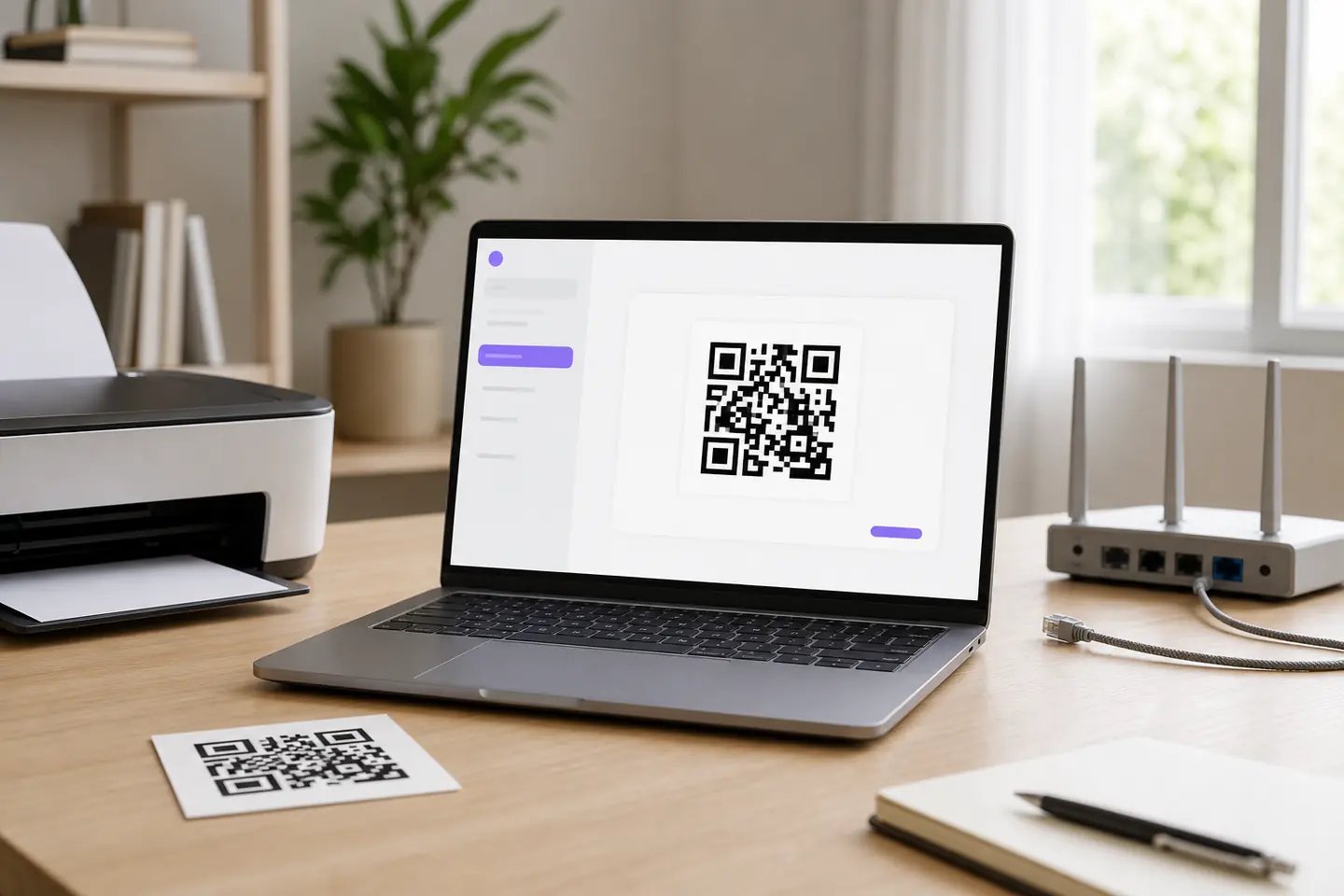
Two things make the difference on a laptop. Webcams are fixed focus, so a code held too close blurs and a code held a hand's width further back reads immediately. And they are lower resolution than a phone, so the code needs to fill more of the frame than you would expect. If the code is on your own screen rather than on paper, do not point the webcam at the screen at all. Take a screenshot and read the image directly, which skips the camera and every reflection problem with it.
This one is worth explaining properly, because the browser tells the page exactly what went wrong and almost no scanner passes that on. A blocked permission and a camera held by a video call are different problems with different fixes, and "camera not available" covers both while helping with neither.
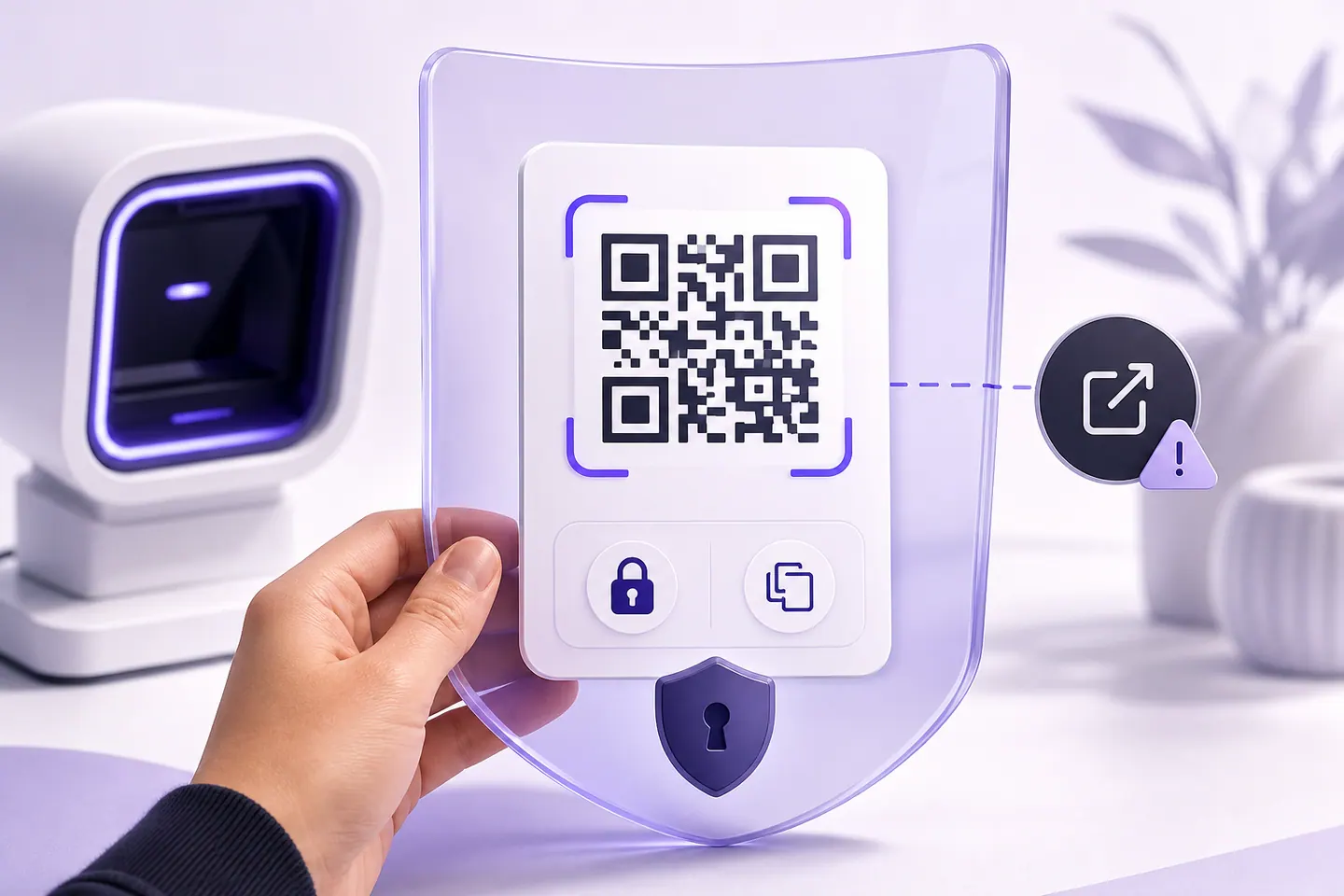
A phone camera scans a code and offers to go there, usually with the address truncated to fit a notification. That is how a sticker slapped over the code on a parking meter ends up taking somebody's card details. The scan was never the dangerous part. Following it blind was.
This scanner puts the full text on screen, and where it is a web link it puts the host on a line of its own. Nothing is clickable and nothing opens by itself. It cannot tell you whether a domain is trustworthy and it does not pretend to. What it can do is show you the domain while you still have a choice.
If the code is already a file, a screenshot or a photo somebody sent you, the image reader is the better tool and needs no camera at all. Going the other way, the generator decode-tests every code it makes before the download unlocks, using the same decoder that reads your camera here.
Yes. Press start, allow the camera, and hold the code up to the webcam. The code is decoded in this tab and you get the exact text it contains, along with the link it points at before anything opens. Laptop webcams are fixed focus, so hold the code a little further back than feels natural and fill as much of the frame with it as you can.
No. This runs in the browser you are already using. There is nothing to download, no account, and no extension. That is also why it works on a work laptop where you cannot install anything.
The browser says which of a handful of things went wrong, and this page passes that on rather than guessing. The usual one is that the camera was blocked for this site, which you undo from the padlock icon in the address bar. The next most common is another program holding the camera, usually a video call, including one minimised in the background. If there is no camera at all, read the code from an image instead.
No. Frames go from the camera to a canvas in this tab to the decoder, and stop there. Nothing is recorded and nothing is sent. That is enforced rather than promised: this site's content security policy restricts network connections to its own origin, so the page could not upload a frame even if it tried to.
The rear one, because that is the one pointing at whatever you want to scan. If the device only has a front camera it uses that instead rather than failing. Once permission has been granted, a picker appears whenever more than one camera is available, so you can switch to a plugged-in webcam on a laptop.
Use the image reader. If the code is a screenshot, a downloaded file or a photo somebody sent you, it decodes the file directly with no camera and no permission prompt, and it also measures whether the code has enough detail left to scan anywhere else.
No. Barcodes, Data Matrix and Aztec are different symbologies with different decoders. This reads QR codes only.
Scanning is not the risky part. Following what is inside it is. This page shows you the exact text and, for a web link, the host on its own line, and it never opens anything for you. It cannot tell you whether a domain is trustworthy, and it does not pretend to. Read the domain first, and be suspicious of one that looks almost right, of a shortener you cannot see through, and of any sticker stuck on top of another code in a public place.
Point a camera at one, or pull one out of a screenshot, and see the link before you open it.
What the redirect actually buys you, measured on real encoded codes, and which payloads are worse off for it.
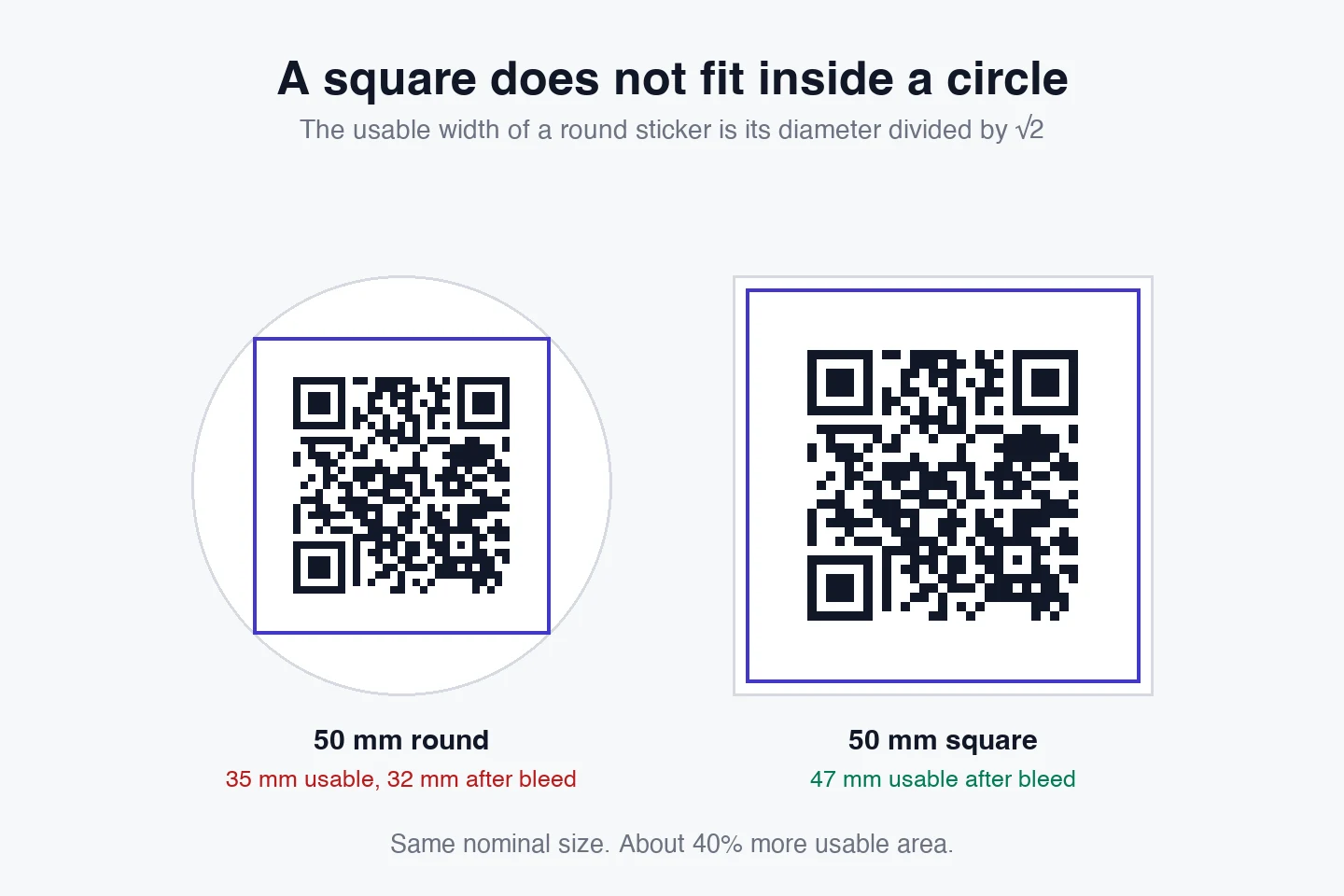
16 min readThe usable square inside a round sticker is 70% of its diameter. Measured minimum sizes for real links, against every common sticker size.
8 min readWhat each platform already ships, the measured cost of each payload type, and how to check an offline claim yourself.
26 min readQRMakery decodes every code on your own device. No frame from your camera and nothing a code contains ever reaches a server.